
Winbox OTP Not Received: Fix the TAC Code and Log In Again
Winbox OTP not received? Check where the code was sent, get your phone ready to receive it, then log in again from wb889.com.
By the Winbox Malaysia Editorial Team · Last checked: 2026-11-20
Winbox OTP not received after your request? Start with the destination shown on the verification screen. Use the official Winbox Malaysia website to reach the account entry and open Winbox login when you are ready to try again. During sign-up, make any corrections on the Winbox registration page before requesting the code. Read our editorial policy.
Why is my Winbox OTP not coming?
Quick answer: Match the number or email shown on the screen to the one you can access, then check the relevant inbox.
For a Malaysian mobile number, use the international format when the form asks for it. If the country selector already shows +60 as the country code, leave out the leading 0 from the local mobile number in the remaining field. If the form has one field for an international number, enter +60 once and follow it with the local number with that leading 0 removed. Compare the final digits of any masked number on the confirmation screen with the number you meant to use.
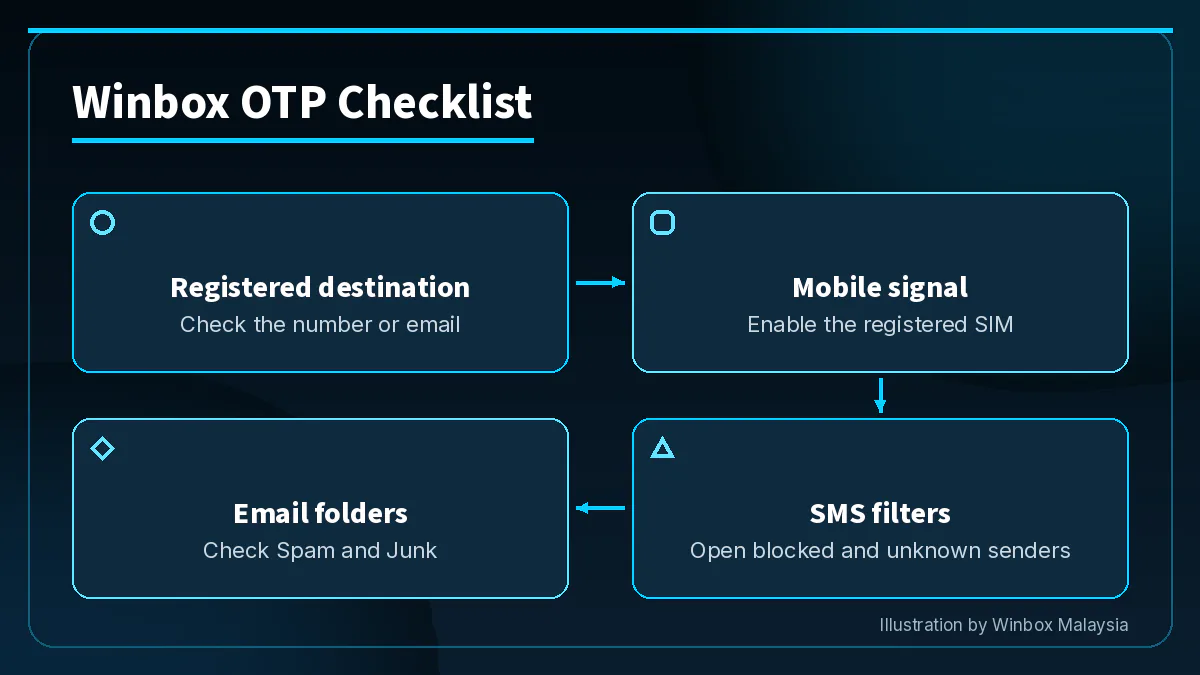
If the screen says the code went by email, open the mailbox for the address shown. Check Spam or Junk and search for Winbox across folders. This matters if you have several mail accounts on the same device: searching your usual inbox will miss a message sent to a different address. Return to the verification tab once you find the message tied to your current request.
Winbox TAC not received on your phone?
Quick answer: Check whether the registered SIM can receive SMS, then look in the folders where your phone puts filtered messages.
Move to a spot with mobile signal and turn off airplane mode. On a dual-SIM phone, confirm the registered line is switched on and check the default SIM for SMS so you know which line you are testing. The incoming code follows the registered number. A different default for data does not move it to the other line. If you are travelling, check that the registered line has joined a roaming network and ask your mobile operator whether it can receive SMS there.
Open Messages directly. Do Not Disturb can silence the alert while the text still arrives, so look for the message in the inbox itself. If the SMS inbox is full, clear space before making a fresh request. On Android, look in “Spam & blocked” if your messaging app has that folder. On iPhone, check the Unknown Senders list if “Filter Unknown Senders” is on. If personal texts arrive but service messages are missing, ask your mobile operator whether it blocks short-code SMS on your line.
Winbox verification code not received, or is the code being rejected?
Quick answer: Check the current code if it is rejected, request a fresh one if it expired, and wait if the screen asks you to try later.
These are common messages players may see during verification. If a code finally appears after another request, check which request it belongs to before entering it. Check the message timestamp and the screen you are on so you can tell delivery trouble from a rejected code.
| What you see | What to check | Next action |
|---|---|---|
| No new message | Delivery method and masked destination | Open the matching SMS or email inbox. |
| “Invalid verification code” | Whether the code belongs to the current request | Enter the newest code for the current screen and remove any space copied with it. |
| “Code expired” | Whether you opened an older message | Request a fresh code when the screen allows it. |
| “Please try again later” | Whether another request is currently available | Wait and follow the instruction displayed on the verification screen. |
When should I request another Winbox code?
Quick answer: Wait for the current request and check the inbox before using the resend option once it becomes available.
Keep the verification screen open while you look for the message. Switching between the app and multiple browser tabs can make it hard to tell which request you are answering. If several texts arrive together, open the newest message associated with your current request. Type the code directly if your phone offers to autofill an older one. Check that the whole code made it into the field before submitting it.
If you choose to move to the browser, finish there using the request on that screen. Use the Winbox H5 browser access instructions to open the browser version. If the browser and app both show the same masked destination and no message arrives, return to the SIM or mailbox checks before requesting again.
If the problem starts before the code screen, check what to do when Winbox login fails. If the password is the part you cannot remember, follow the Winbox password reset steps. For everyday account protection, see how to protect your Winbox account.
What if I changed my registered number?
Quick answer: If you can no longer access the registered line, email [email protected] about the verification issue.
A replacement SIM with the same number and a SIM with a new number are different cases. With a replacement for the same number, test whether ordinary SMS reaches that line. If your number changed, compare the masked digits on the account screen with those of your current line. A resend to the old destination will still go there. If you can access your account on another device, check what contact details it shows and follow any update instructions displayed there.
When the checks still leave you without a code, email [email protected] with your registered username. Say whether you were logging in or registering, which delivery method the screen showed, and whether you still control that destination. Include the wording of any error and keep your code and password out of the email. Find the email address on the Winbox contact page and see the Winbox account questions for related topics.
How do I get a fresh Winbox code and log in?
Quick answer: Check the destination and inbox first, then make one request and use the code for that screen.
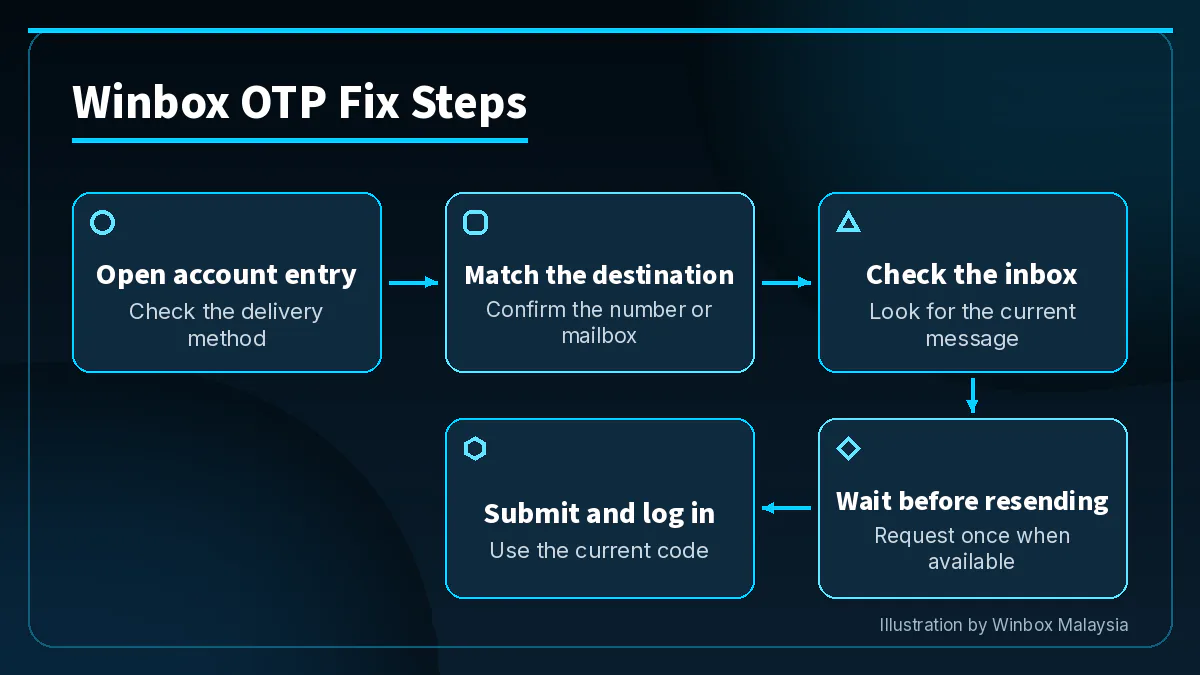
- Open the account entry. Use the Log in button and read which delivery method the verification screen shows.
- Match the destination. Check the masked number or address against the one you registered with. Correct the format if the form lets you edit it.
- Prepare the inbox. Restore mobile signal and check the registered SIM for SMS, or open the correct mailbox and check Spam or Junk.
- Wait before resending. Look for the current message. When resend is available and you still need a code, request it once.
- Submit the current code. Enter the code for that request in the open verification screen, then log in.
Winbox OTP questions
Can I use a code that arrives after I request another?
Use the code tied to the current request. If messages arrive close together, check their timestamps and enter the newest code for the screen you are using.
Can Do Not Disturb stop a TAC alert?
Yes, Do Not Disturb can mute the alert. Open Messages and check the inbox and any filtered folders directly.
What if ordinary SMS arrives but the TAC does not?
Check your filtered folders and ask your mobile operator about short-code SMS. Confirm that you tested the line listed on the verification screen.
Where should I look for a verification email?
Open the mailbox shown on the verification screen. Check its Spam or Junk folder and search for Winbox across folders.
What should I include if the code still does not arrive?
Email [email protected] with your registered username, the step you were on and any error wording. Never send the code or password.
For players aged 18+. Set a budget you can stick to and use our responsible gaming resources to stay within it.